
Free online tools to convert anything, instantly
Simple, fast and accurate tools that work right in your browser. Pick a tool and get it done in seconds.
100% Free · No signup
Popular tools
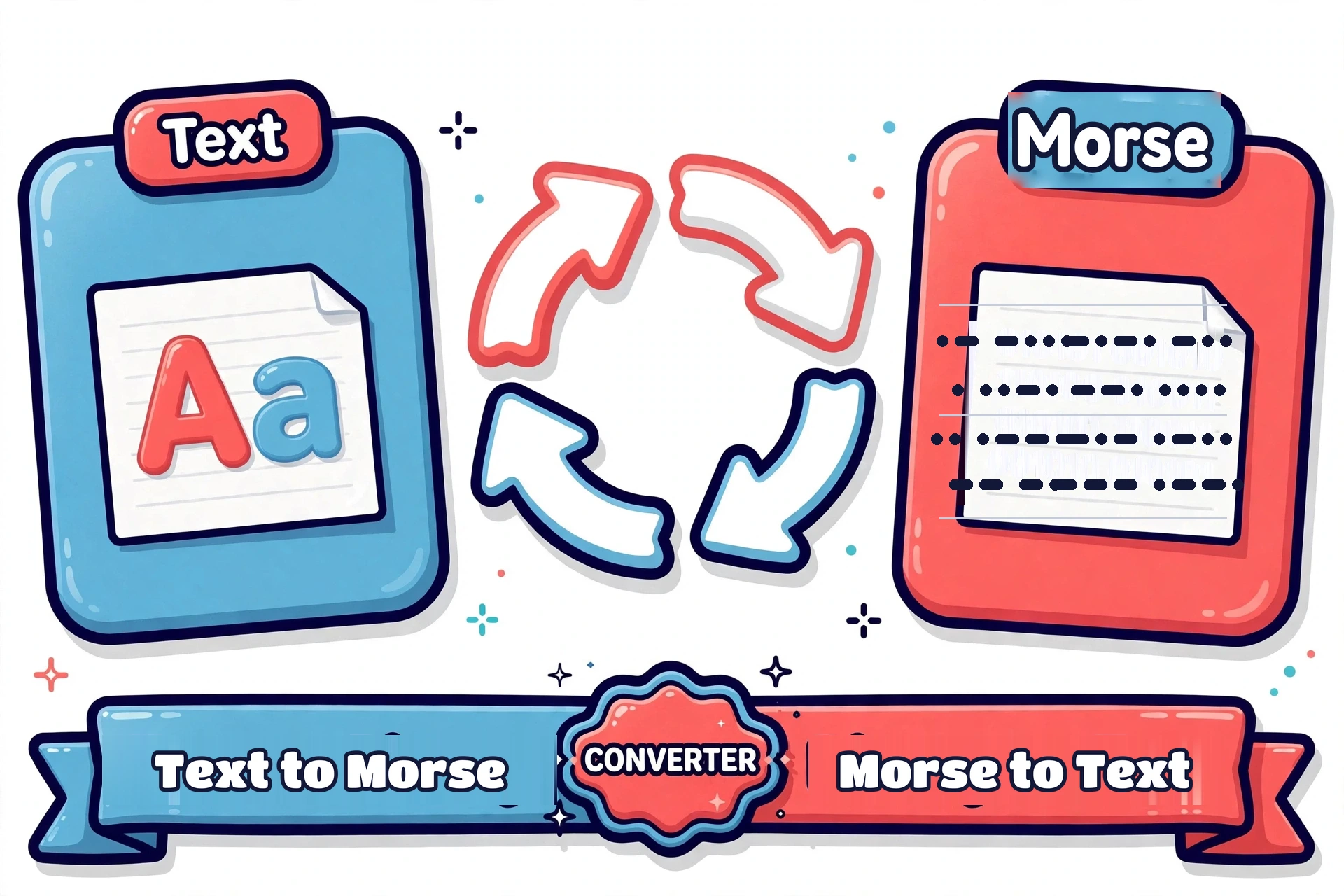
Made for everyday tasks
Why choose Convertic Tools?
A straightforward approach to conversion. Find your tool, add your input and get on with your day.
All converters in one place
One dedicated home for your converters, so the tool you need is always easy to find.
Instant results
Results appear as you type. No waiting, no queues and no extra steps.
Free, no signup
Open a tool and start using it. No account and no payment needed.
Private by design
Text tools run in your browser, so what you type stays with you.
Works on any device
A clean layout that adapts to your phone, tablet or computer.
Copy, download or listen
Use your result the way you need, with the output options of each tool.
Three simple steps
How it works
From your first click to your final result.

Choose your converter
Pick the tool that matches your task, such as the Morse Code Translator.

Add your input
Enter your text, value or supported file, then select the conversion you need.

Get your result
Run the conversion, then use the output options available in your selected tool.
Got questions?
Frequently asked questions
Quick answers about Convertic Tools and our Morse Code Translator.
What is Convertic Tools?
Convertic Tools is a collection of simple online converters in one place. Pick a tool, add your input and get your result in seconds, without installing anything.
Is Convertic Tools free to use?
Yes. Our tools are free to use, with no payment needed.
Do I need to create an account?
No. There is no signup or login. Open a tool and start using it right away.
Is my text stored or shared?
Our text tools, including the Morse Code Translator, convert in your browser. We do not store what you type or share it with anyone.
How do I convert text to Morse code?
Open the Morse Code Translator, make sure Text → Morse is selected, then type or paste your text. The Morse code appears instantly on the right.
Letters are separated by a space and words are separated by /.
How do I convert Morse code to text?
Switch to Morse → Text, then enter your Morse code using dots (.) and dashes (-). Put a space between letters and a / between words. The small keypad under the input box helps you type them on mobile.
Which characters does the Morse translator support?
It supports the letters A to Z, numbers 0 to 9 and common punctuation such as . , ? ! ' " / ( ) & : ; = + - _ @. Characters that have no Morse code are skipped.
Why do I see a question mark (?) in my translated text?
A question mark appears when a group of dots and dashes does not match any known Morse character. Check that letters are separated by a single space and that you have not mixed up dots and dashes.
Can I listen to the Morse code?
Yes. Press Play to hear your Morse code as beeps. You can change the playback speed from 5 to 40 words per minute (WPM) with the speed slider.
Can I upload a file or download my result?
Yes. Use Upload file to load a text file (.txt), and Download .txt to save your result. You can also copy the result with one click or paste text straight from your clipboard.
Does it work on mobile phones and tablets?
Yes. The tools adapt to any screen size, so you can use them on a phone, tablet or computer.
Will you add more tools?
Yes. We are adding more converters over time. Check the Tools page for the latest ones.
Still have a question? Contact us